Saturday, March 10, 2012

PakTrakr for Android

This post will be kept up-to-date about the PakTrakr for Android application I've written.

It will represent the user manual, known bug list, future goals list and application and source code availability reference.  As information is updated, I will strikeout the old, highlight the new, and mark with version numbers (1.0, 1.1, 1.2).

Comments or bug reports can be posted as comments here or emailed to mwbrown42@gmail.com.  Please provide detailed information to allow me to have a chance to reproduce and correct the problem: Android device type, Android operating system version number, screen resolution, GPS and Bluetooth availability in the device, PakTrakr Bluetooth transmitter, and other relevant device-specific information and a detailed description of the steps necessary to recreate the problem.

I will do my best to continue fixes and new development but I can't promise anything, especially with the PakTrakr product going out of business.

User Manual:

Quick Start:
  1. Install a Bluetooth transmitter into your PakTrakr's serial port
  2. Turn on Bluetooth service in your phone
  3. Turn on GPS service in your phone
  4. Pair the Bluetooth transmitter with your phone
  5. Install the PakTrakr app
  6. Complete all Preferences settings, including the Bluetooth transmitter ID
  7. Ensure the PakTrakr is active
  8. Click on the Real Data button on the Debug tab
  9. You should see the PakTrakr data reflected in the gauges and battery table
  10. When you're ready to drive, click on the Start Trip button on the Maps tab
  11. Wait for the map display to find your location
  12. Enjoy your trip!
  13. When your trip is over, click the Stop Trip button on the Maps tab
Purpose:

This Android application displays battery data from a PakTrakr system through a Bluetooth link.  Unfortunately PakTrakr went out of business on 12/31/2011, so no new parts are available.

Access to the critical information about the battery pack in your vehicle (car, truck, boat, etc) helps you operate the vehicle safely and hopefully with longer range and more confidence.

The application is set up as a series of tabs.  For best performance, the Android device should be mounted / held in Landscape position.

Map Tab:


The Map tab utilizes the GPS in your Android device and the Google Maps feature to graphically track your trip distance.  To begin your trip, make sure your GPS is enabled.  Click on the Start Trip button and begin driving.  A green line representing your trip will be drawn on the satellite map.  When your trip is complete, click on the Stop Trip button.  You trip will be logged in the Trips tab.  In the future, it will dynamically calculate your remaining range given the characteristics of your current trip and the amount of charge left in your battery pack.


Gauges Tab:

(Simulated Data)


The Gauges tab displays four pieces of information about your battery pack.  These readings are only valid when you are not pressing on the electron pedal and the battery pack is not charging or discharging.
  1. % Charge.  This is a dial gauge that goes from 70 to 100, showing how much charge is left in your battery pack.  This number comes directly from the PakTrakr data stream and it's not clear to me how this is calculated.  Each type of battery has a safe discharge level, so be sure to not drop below this.  
  2. Pack Temp.  This is a dial gauge that goes from 20 to 160, showing the temperature in Fahrenheit, of the battery pack.  Batteries that are too cold or too hot do not charge and discharge effectively.
  3. Pack Volts.  This is a dial gauge that goes from 90 to 130, showing the voltage of the battery pack.  Watch this carefully to ensure you do not over-discharge your battery pack.
  4. Current Flow.  This is a bar graph that goes from -600A to 600A, showing the charging current flow, in a green bar, and the discharging current flow, in red.  Careful electric driving reduces extreme current draw.

Batteries Tab:

(Simulated Data)


The Batteries tab is a grid representing the physical location of each battery in the pack.  There is a display for each battery showing the battery number and the instantaneous voltage of that battery.  Watch each battery's level and ensure that all batteries are within a narrow voltage range and no batteries are overcharged or  over-discharged.


Trips Tab:


The Trips tab displays a list of each trip you log using the Start Trip and Stop Trip buttons on the Map tab.  To delete a trip, tap on a trip line and select Yes in the confirmation dialog.


Errors Tab:


The Errors tab displays a list of error codes emitted by the PakTrakr.  There are several types of errors, which help you understand what is happening to each battery:
Low Water Likely, Pack Imbalance, Failing Battery, Maintenance Required, Damaged Battery, Overcharging, Excessive Discharge
Each error line in this tab contains:
Date, Physical Battery Number, Error Message

Preferences Tab:


This tab configures the application to match your PakTrakr and battery installation.  You must set these parameters correctly to match your installation or problems or crashes will occur.
  • Rated Battery Voltage: Tap to enter the normal voltage of your battery type.
  • Low Battery Voltage:  Tap to enter the lowest safe voltage for your battery type.
  • Battery Rows: Tap to enter the battery setup in your vehicle.  This section allows you to set the number of physical rows of batteries in your vehicle.  It dynamically changes the number of entries and allows you to enter the number of batteries physically located in each row in the car, going from front to back.
  • PakTrakr Remotes: Tap to enter the PakTrakr wiring in your vehicle.  This section allows you to set the number of PakTrakr Remote units you have in your vehicle, and the physical battery number wired to each sensor wire of each PakTrakr Remote.  This is required due to the possibility that your battery bus wiring may not match up to the battery numbering system you'd like to use.  A Battery mapping entry is a comma-separated list of physical battery numbers, showing how each physical battery is wired to the PakTrakr Remote sensor wires, for example "3,1,2,6,5,4".  It's very important to follow the PakTrakr wiring instructions or the data reported will not match the battery layout.  The PakTrakr sensor wires go in sequence from the "Most Negative" battery in a battery group for each PakTrakr Remote to the "Most Positive" battery in the group.  The Black wire goes to the Most Negative battery's (-) terminal.  The remaining wires go to the (+) terminals of each battery in sequence: Red, Green, Blue, Orange, White, Brown, Yellow, Violet.  Any unused sensor wires can be wrapped in tape or cut off and secured.
  • PakTrakr Bluetooth Device: Tap to select the name of the previously Bluetooth-paired transmitter you have attached to the PakTrakr serial port connector.  Please see this entry for more details.

Debug Tab:


This tab contains useful things I used during debugging of the application and which should go away in the future.
  • Real Data / Dump Data / Simulated Data:  This switches the data being read and where it's displayed.  The app launches in Simulated Data mode.  You need to make sure your Bluetooth transmitter is on, Bluetooth is enabled on the Android device and the transmitter name is selected in the Preferences screen.  You can then click on Real Data.  After a short period to hook up to the transmitter, the PakTrakr data should be reflected on all displays and gauges.
  • Test Parser:  This reads some PakTrakr test data within the app and runs it through the parser and  reflects it on all displays and gauges.
  • Insert Trip:  This adds a fake trip to the Trip database and Trip list.
  • Insert Error / Delete All Errors:  This adds a fake error to the Error database and Error list, or clears all errors from the database and list.
  • Data Dump Area:  This is where raw PakTrakr data is displayed instead of being parsed and  reflected on all displays and gauges.
Known Bugs:
  • The app is very fragile, so you may find that many things can crash it.
  • GPS turned off crash.
  • Bluetooth turned off crash.
  • Rotate Android device crash.
  • PakTrakr data signal interference crash.
  • PakTrakr protocol data mis-handling crash.
  • Parameter settings mis-handling incorrect operation or crash.
  • Bluetooth not linking up.  Check pairing, power and wiring.  Try rebooting Android device.
  • Data may not be displayed in the Data Dump area.

Updates:
  • V 1.0: Initial Release.
  • V 1.1: Added ACRA crash handling library to report crashes for debugging and updates.
  • V 1.1: Gauges now autosize to your device's screen resolution.  Tested on Droid, Droid Bionic and Xoom.
  • V 1.1: Optimized gauge layout for portrait and landscape orientation.
  • V 1.2: Added error handling to Preferences inputs
  • V 1.2: Improved handling of errors in PakTrakr data stream

Future Goals:

  • Auto-scale the Voltage gauge for pack voltage.  Currently hardcoded to 120V.  Top of scale will be nominal @ 125%, Low will be 25%.
  • Allow user to select which gauges to show or not show
  • Scale the battery table to size to available space
  • Use graphical AA battery and height bar/color to indicate charge level
  • Calculate Watt-Hours/Mile
  • Display Watt-Hours in gauge or tab
  • Add Miles/Kilometers setting
  • Add validation to the battery pack Preferences inputs
  • Add better error handling to PakTrakr data stream
  • Add better Bluetooth connection status messages
  • Continuously calculate a reliable remaining distance based on the trip distance so far, starting and current charge levels, and display in the Map tab.
  • Add another table to track charging information.
  • Allow gauges to resize to native display on your Android device.
  • Add color coding to Batteries tab for good / overcharge / over-discharged state
  • Calculate average per-charge distance
  • Record and display Amp-Hours during charge and driving
  • Handle first notification of an error and ignore subsequent ones until error goes away
  • Remove, hide or redesign Debug tab
  • Re-use graphical display to talk to another brand of Battery Monitoring System.  Jack wants me to get data from a LinkPro.

Application Availability:

The app was completed and published in the Google Play store on May 27, 2012.  Please use the button below to access it:

Get it on Google Play (small)


I will release the application temporarily from this web site.  When I have the full process in place, I will release the application into the Android Market / Google Play store.

In order to release V1.0 of the application here, I have to:
  • Fix a final bug in the PakTrakr protocol handling (always one more bug!)
  • Create a cryptographic key to sign the application
  • Create a cryptographic key to enable the use of the Google Maps programming interface
  • Create an End User License Agreement, based on GPL V3
  • Set version numbers and names in the Manifest file
  • Use Eclipse to create signed and optimizied .apk file
  • Provide a link to the .apk file.  Note that you will have to update your device settings to allow application installation from non-Market / Play locations.
In order to release V1.0 of the application to Android Market / Google Play store, I have to:
  • Complete all of the above
  • Design an icon, as defined by the Android style guide (Thanks to Ryan's skills!)
  • Prepare promotional text and screenshots of the application
  • Configure Market / Play options
  • Publish in Market / Play
  • Create link to app installation icon:


Source Code Availability:

I will release the source code to the application, under the GPL V3 license, as an Eclipse project Archive file.  Anyone can download, use and update this code as long as you stay in compliance with GPL V3.  I would ask that any fixes or great new features be donated back to me for inclusion in the code for everyone's benefit.  Donations to my PayPal account mwbrown42@gmail.com for access to the source code are gratefully accepted.

Friday, March 9, 2012

Zivan Overcharging

I'm doing my 7th charge right now and have learned that I have to watch the Zivan 120V DC charger very carefully.

The first couple of charges went as expected.  There's a display LED on the unit that tells you what charging phase you're in.  When first plugged in, a red LED comes on, it beeps twice and two stages of fans come on.  When it reaches the 80% charge point, a yellow LED comes on.  When it reaches the 100% charge point, a green LED comes on and the charger shuts off.  This should allow fo unattended charging overnight.  The first 3 charges put in about 8.0 KWH to 8.5 KWH, ran through to the green LED and shut off around 6:45 hours to 7:00 hours.

This matches what I was expecting, given the characteristics of the battery pack:

242 AH * 6V = 1452 WH per battery.
1452 WH * 20 = 29,040 WH = 29 KW per pack.
Charge range goes from 70% to 100% of pack capacity = 30% of pack capacity
29 KW * 0.3 = 8.712 KWH.

On charge #4, I noticed that it was still yellow but was up to 9.0 KWH at 7:00 hours and the pack voltage was 157V!  The PakTrakr was reporting overcharge on several of the batteries.  I pulled the plug and let it stand until the next day.  The pack had dropped down to 128V or so and PakTrakr said all batteries were now good.  I decided to check the water level and found that every cell, 60 of them, was about 1/2" down from full, but not anywhere close to the top of the metal plates.  This may be natural, but I certainly wasn't expecting to water the batteries every 4 charges.

Charge #5 was a partial, interrupted by a popped breaker as I was charging it from a different plug on a different side of the house.

Charge #6 hit 157V again, at 7:16 hours and 8.68 KWH.  Now I'm worried and I just can't trust the charger.

Here's the whole charger and the two stickers on the charger:


I do have T125 type batteries with 240AH capacity (actually rated at 242AH) , so hopefully the factory settings were done correctly.


This F5 sub-model isn't even listed on the Zivan web site, only ones starting with F7.  Also, there's no explanation of the U1, U1E, U2 and U2E voltage values and how the charging phases work in the NG3 manual.  The charging curve page is blank!  You can see that my physical model doesn't even look like the one in the manual.  Mine doesn't have the long bar of LEDs showing the charging state, just the circular 0-80%, 80%-100% and 100% charging LED display.

I just spoke with the staff at Zivan / Elcon in Sacramento and described the symptoms.  He had me check the small rotary switch and it's set to "4" which is correct.  He said given the model and switch setting, it was correct for my batteries and shouldn't go up to 157V and said I should send it in for testing.  When I asked if he would be able to look at it within a couple of days of arrival, he said "Jesus, no way", as he has about 150 chargers already in line for repair.  He gets about 3 more every week.  Even though I just got it into the car, it's out of warranty and if I pay a $35 rush fee he'll look at it soon after arrival.  I need to include a note stating what I'm seeing happening, the make and model of my batteries and my contact details.

Wow, I'm not thrilled that this is happening so soon after getting the car rolling.  I have to decide when the time is right to send it in, as I have a couple of week-long out-of-town trips coming up.  I get to pay for shipping two ways, repair and possibly rush fee.

I'm 4 hours into the charge now and it's at 134.6V and 5.35 KWH.  I use a Kill-A-Watt unit to watch voltage, current, AH and time of power delivery.  I'll watch it closely through the rest of the charge.  Next charge I'll log 15 minute data on volts, amps and KWH so I can see what's going on, and report it accurately to Zivan repair if necessary.  If the repair is prohibitively expensive, I may just go right for a 240V AC charger.

4-wheel Alignment

Earlier in the week I booked a time slot at John's North County Brake shop for a 4-wheel alignment.  My cow-orker Deb has all of her work done by John and highly recommended him.

Today is Solar Appreciation Day at my company REC Solar.  We get this day off every year to celebrate the end of winter and we're supposed to go out and enjoy the sun and the outdoors.  I took the opportunity to drive the 914 into town and get the wheels aligned to make sure I'm tracking correctly down the road and not wasting energy on excess friction.  I certainly enjoyed the sun on the drive in and out with the targa top off!

I pulled in and John wondered if the car was nuclear powered!  He has a tricked-out golf cart that shares a lot of the same technology so he was familiar with the overall design of the car.  John called his friend over from the Robb-A-Cart golf cart shop across the street to check out the car too.  I discussed an overcharging situation I was having with my Zivan charger and Robb suggested that I contact Elcon in Sacramento as they do repairs on Zivans there without having to ship back to Italy.  In fact several people came by the shop as the work was ongoing and were interested, so I explained the design several times.


First John adjusted the torsion bar bolts on the front suspension until the car was level side to side.


The rear wheels were pretty good, only 1/4" or so out of alignment.  It wasn't clear how to make the toe adjustment, so I Googled it on my phone and found that two bolts needed to be loosened at the front end of the trailing arm.  The arm is then adjusted with large tools, then the bolts are tightened back down.  The passenger side went easily, but the driver's side wouldn't budge until he put a big pry back farther back into the space between the hub and the shock tower, and it came loose.


Then he went back to the front wheels and found, to no surprise, that the wheels were badly out of toe due to my replacement of the tie-rod ends.  A quick adjustment brought them back into alignment.

The car now has all 4 wheels pointing in the right direction and the steering wheel is level!

On the way home, I stopped into the battery shop and showed Jim the car which was now full of his batteries.  He was impressed, as were two folks on motorcycles that were at the shop at the time.  I have a feeling I'm going to be explaining the car everywhere I go, but I'm looking forward to it!

Punch List

I'm down to the point where I have a few things to finish off to call the car "complete".  I have driven it several times but there are things that I need to take care of to make it really road-worthy and not be afraid of being noticed by the cops!

I went through all of the electrical systems and found the following don't work:

  1. Use of blinker blows a fuse that powers most of the dashboard.  This is going to involve some remove-wires-and-test and a lot of blown fuses until I figure it out.
  2. High beam lights don't work, but I think this is a problem with a known workaround of a dead high/low beam silver rectangular relay.  This didn't work when I bought the car.  The  high beam indicator light doesn't work and I assume this is related.
  3. Hazard lights don't work, likely related to #2, but doesn't blow a fuse.
  4. Compartment light doesn't come on when switch in door-buzzer position, but does come on in the other position.
  5. Reverse light does not come on when shifter in reverse.
  6. License plate light does not come on with headlights.
  7. Wiper only works in "middle" position.  Low and high do not cause movement, but when left in high position causes the wiper motor to get extremely hot.
Other items that need attention:
  1. Driver's side A-pillar is bent down by about 1/4" and the chrome upright in the door's window assembly doesn't fit nicely into the rubber gasket.
  2. Driver's door window mechanism gets stuck when in the full-down position.
  3. Passenger's door window mechanism stops about 1/4" below the targa gasket.
  4. Need to figure out how to drive the 120V charger with the J1772 charger.  Extreme disappointment that there's no way to derive 120V from the 240V feed due to lack of Neutral.  Luckily I work with electricians and power electrical engineers, so I'll pick their brain for some kind of 240V-120V transformer solution.
  5. Buy rear trunk hinges.  Rainbow body shop "lost" them somewhere in their shop.  Pelican doesn't have any stock, but they can get one of them from Porsche in Germany for a mindboggling price plus shipping.  The 914EV list suggests that I watch eBay as they come up for sale all the time.  Unfortunately now there are only front hinges for sale!
  6. Get rear trunk hinges stripped/primed/painted by Rainbow.
  7. Install rear trunk hinges, rear trunk lid and rear trunk lid latch.
  8. Install rear trunk gas struts from Camp914.
  9. Mount rear-view mirror on new windshield.
  10. Figure out how to keep sun visors up when I want them up and down when I want them down.  I've tried butyl and wraps of electrical tape, but both end up sagging down.  There seems to be a bolt hole, but I won't clamp down on the pivot pin.
  11. Finish debugging PakTrakr Android app and publish it into the Android Market.  More on this in a separate post.
  12. Buy 3rd party floor mats.
  13. Get a padded bag(s) to hold charging cable, Kill-A-Watt, fire extinguisher and tire jack.
  14. Get agreed-value insurance to cover the full $40K of money in the car in case of a total wreck / fire.
  15. Install pads in rear suspension to raise rear of car about 2".
  16. Change California vehicle registration type to Electric by going to smog referee at Cuesta College in San Luis Obispo.
  17. Long-term: Buy & cut sheets of clear plastic / lexan for battery box covers

Monday, February 27, 2012

Windshield Installation

In a breath of fresh air, the windshield installation went very smoothly!  I contacted Apex Auto Glass in town and arranged for them to install the windshield at my house.  They recommended that I buy the Porsche trim or a suitable rubber gasket to do the installation, as butyl is illegal for front windshield installs now.  I bought the gasket from 914 Rubber, plus 19 of the factory window clips and two rubber spacers from Pelican Parts.  The installers said that the clips and spacers were only needed if we were using the original chrome clips and trim, so back to Pelican Parts they go!

The installer started out by testing the gasket on the windshield.


He then painted the edge with a black primer to help with adhesion of the urethane glue and give a nice consistent edge to the viewing area of the glass.


He scuffed the paint around the edge of the window frame and painted it with the black primer.


He filled each of the 19 clip holes with urethane to seal them from water getting in and out.


He pressed the dashboard/windshield gasket into place that I picked up from 914 Rubber.


He applied the gasket to the windshield.


He then ran a bead of urethane adhesive around the edge of the glass.


He ran a matching bead of urethane adhesive around the inside of the window frame.


The shape of the notch in the gun gives the adhesive a tall triangular shape.


The installer and the office manager Scott then placed the glass into place and pressed it down.


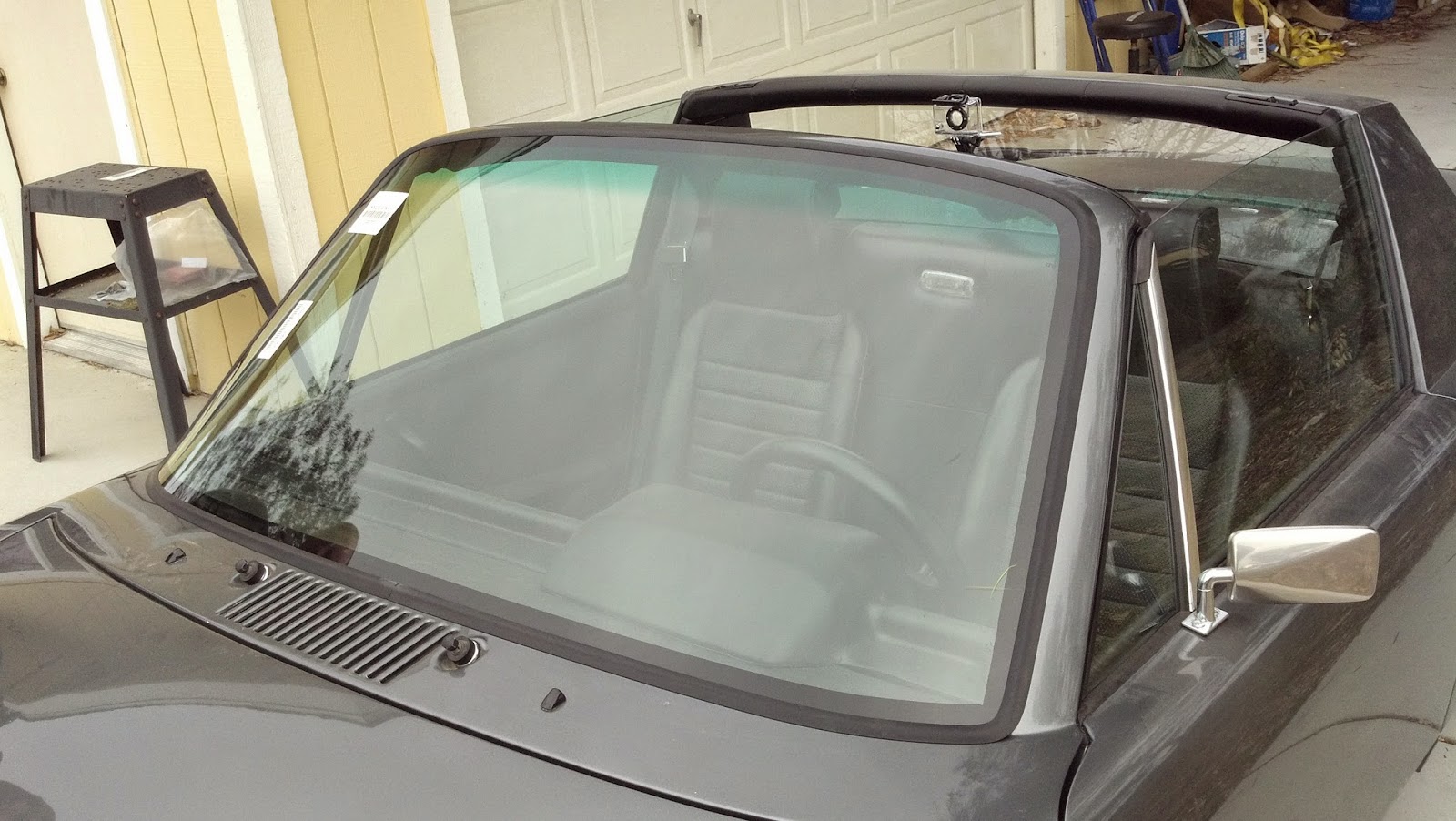
It looks great and fits the black motif perfectly.


Painters tape helps the gasket seal down tightly as the adhesive cures.


They offered to take the old windshield off to the glass graveyard.  Note the terrible butyl install job done by a previous owner.  The crack is my fault during teardown, but it lived a hard life and needed to be replaced.


It's a little cliche' but later in the day, we got a rare rain shower and a huge rainbow popped up over the car and the solar array that makes the electricity that the car gets charged from.

Dashboard Top Install

The dashboard top had similar cracking problems to the targa bar.  I had a plan to adhere a new layer of vinyl to it, but the compound curves were way too tight and it just wasn't practical.  In fact the factory uses a vacuum press and I don't have access to one.  I actually bought a plastic dashboard cap but didn't like the look of it - too plasticky.  It's still in its box if anybody wants to buy it from me.

Given my success with filling the cracks of the targa bar and spraying with rubberized undercoating, I decided to try the same technique on the dashboard top.  I spent much time filling the cracks, sanding, filling and sanding.  When I was reasonably happy, I began the spray coating process.  After that was complete, I prepped the dashboard area.

First I had to apply a small piece of new vinyl between the front edge of the dashboard cap (shown in the traced green line below) and the windshield / defroster vents.


I was going to be painting on contact cement so I wanted to make sure that there would be no drips on the nice bits of the car.  I cut a piece of construction paper to the shape of the dash area to keep the two sides of the contact cement separated and reach tackiness until I want them to come together.


 I got the vinyl cemented down safely, and the leading edge is tucked down into gap between the dashboard and windshield and defroster vents.


Then I laid the dashboard cap into place, fitting the 9 bolts through the holes in the frame.  This is where my self-made nightmare began.


Those 9 bolts, at this point of the restoration, are virtually impossible to get to.  I mean nearly impossible with human size hands and normal tools.  I mean 2 days of effort, taking apart much of the rest of the dashboard and instrument cluster.  The moral of the story is to restore the dashboard and mount it back in place before you put one single thing back into the dashboard rebuild.  I just left the restoration too long, going through several aborted plans.

Here's one of the two bolts that hold down the front edge of the instrument hump.  To even *find* this bolt, I had to pull out the left-side instrument gauge and remove all of the wires.  You can barely see the bolt in the lighted gap, and the nut resting in a little channel just below it.  The channel makes it impossible to get the nut started on the bolt, and then to tighten it up.


It's ugly, but I had to pry the lip of the upper and lower channel away so I could mount this nut.  Compare to the picture above.  At least it's tight and the cap is held in place.


The DIN radio mount completely blocks two of the bolts.  The other nuts are just bad, and I'll let you discover each little neighborhood in hell by yourself.  I just hope you have small hands and lots of patience.

Tachometer Works!

After finding that the tach wasn't displaying anything after installing the tach sensor unit from RechargeCar, I did some additional research.

The sensor is putting out a 12V signal, but the tach is expecting 100V+ signal from the coils of the gasoline ignition system.  Folks on 914 forums suggested either designing a booster circuit with parts from Radio Shack, or just buying a tach adapter unit by MSD.


This is how it looks out of the package.  The wiring is very simple, with 12V power, ground, tach sensor in and tach output out. 


 I wired it up and it worked first time.

Engine Cover

I've been waiting for the body shop to replace the rear trunk hinges that they lost, but they're not the fastest guys ever, so I decided to mount the engine cover back into place.  I hope it's an easy job to mount the hinges with the engine cover in place otherwise I'll have to unbolt it.  The installation went pretty well, but there isn't a lot of spare space to maneuver in.

First I mounted a bolt from underneath, through the hinge and into the nut welded into the bracket on the left and right side.  Note that you have to remove the battery cover to get enough room to get a socket wrench underneath to tighten up the bolt.  I wrapped my wrench with several layers of electrical tape so I wouldn't get zapped by touching a battery terminal.  To avoid rattles and scratching due to paint-on-paint, I put a small piece of 1/8" rubber between the brackets.

Stealing a great idea from Richard Rodriguez, I used neodymium magnets from K&J Magnetics to hold the cover in place, since the spring bar and latch assembly is long gone.  These magnets are very strong, to the point where they can hurt your finger if it gets between two magnets snapping together.  I used a pan-head bolt through the hole in the magnet, small spacer, large washer, rubber washer, through the mounting bracket, then finishing with a nylock nut underneath.  In a bit of a happy accident, I over tightened  one of the magnets and broke it in half.  I used half a magnet on each side as it fits perfectly into the shape of the corner of the underside of the engine cover.  I epoxied a small piece of 1/8" rubber to the underside of the cover to avoid scratches and rattling.  There's also a loose captive nut that I epoxied into place.


The cover fits flush with the side trim and looks great.  It takes a tug on the handle to raise the cover, just like I was hoping for, and it snaps down perfectly onto the magnets.

Targa Installation

After I finished the targa top, I mounted the storage clips in the rear trunk.  I was worried about the fit due to the battery box moving the firewall back a centimeter or so, but it does fit!


Then I placed it into the roof area and locked it down.


Looks great!

Targa Front Seal, Rear Trim Bar and Rear Seal

It was time to install the front targa gasket across the top of the windshield frame.  The one that came with the car was in great shape, so I just cleaned it and slotted it into place.  It went in nicely.


Below is the place where the rear trim bar mounts.  I cleaned, pained and bolted the targa clamps back into their home.


I then went to install the rear targa trim bar.  Alert readers will remember that I had covered it in new vinyl a long time back, as it had several unsightly cracks.  I tried my best, but even the 1/8" of extra thickness prevented it from fitting into place.  So I carefully peeled off my vinyl and scrubbed off the contact cement residue with mineral spirits.


So the plan became trying to repair the cracks as best as possible.  I ended up filling the cracks with vinyl adhesive, waiting a couple of days, gently sanding, then applying more adhesive.  In retrospect I should have used epoxy because the vinyl adhesive takes a long time to dry and shrinks up, necessitating multiple treatments.


This is the result, with a bit of scuffing of the original vinyl due to the sanding.


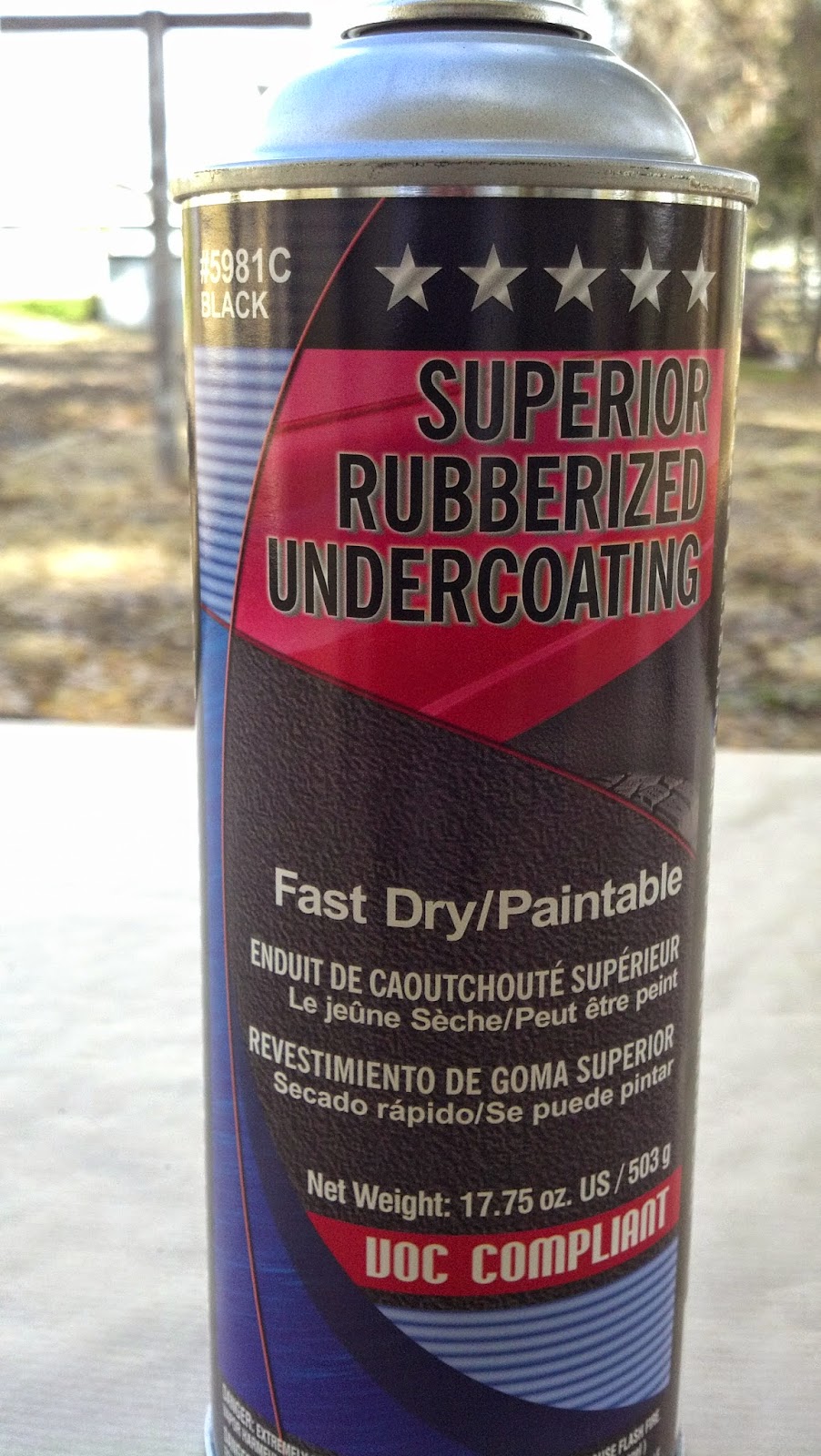
I wanted to get a consistent pebbly texture and after a lot of research, I ended up with this rubberized undercoating.


The trick to using this stuff is to spray in a very fast motion or it will get too thick and goopy.  By fast I mean spraying across the whole trim in about 1/10th of a second.  Apply multiple coats until you get the look you want.  I hung the trim by a string from the bottom of my opened garage door so I had 360 degree access.  Just beware that the overspray will get everywhere!


It's by no means perfect, but better than it started and with a nice texture.


Finally, I mounted the U-shaped rear seal into the targa top.  It's not in the greatest shape, but I didn't feel like buying more replacement seals...  There are two breaks in the rubber gasket, so I shaped and stuck strips of butyl into the holes.  Someday I'll just get a completely new gasket as the fuzzy strip is disintegrating.